Blender Addon · v1.0.0

Shader Ops

Automate bulk shader node edits across hundreds of materials — in seconds, not hours.

What Is This?

Shader Ops is a Blender addon that lives in the Shader Editor's sidebar (N-panel). It lets you perform bulk edits on shader nodes across many materials at once, using a simple 3-step pipeline:

  1. Pick a Scope — choose which materials to target (all, selected objects, or by name)
  2. Apply a Filter — narrow down to specific nodes by type, name, location, or count
  3. Run an Operation — execute an action like recolor, connect, delete, rename, or bulk-edit

Instead of editing nodes one material at a time, this addon can affect hundreds of materials in a single click.
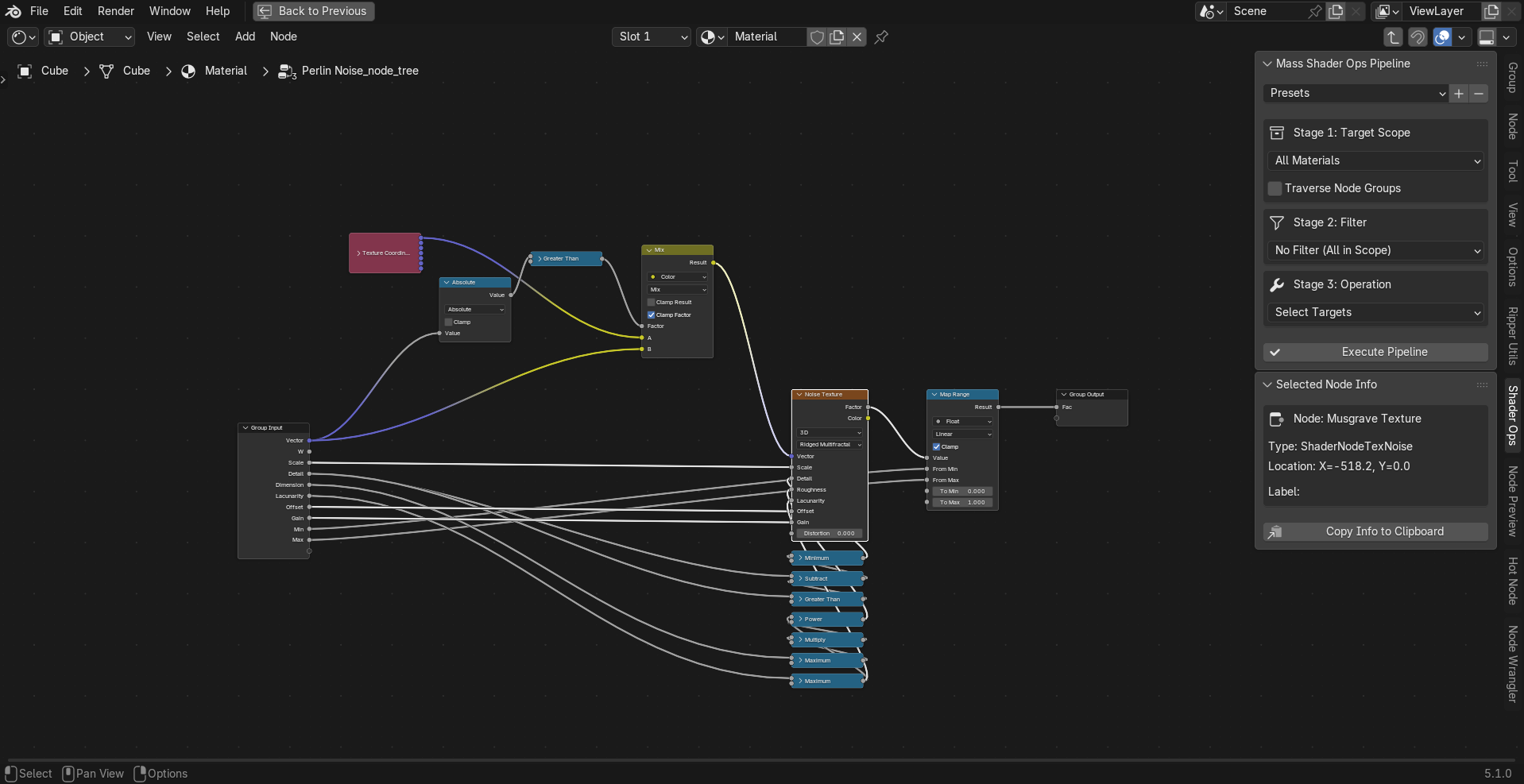
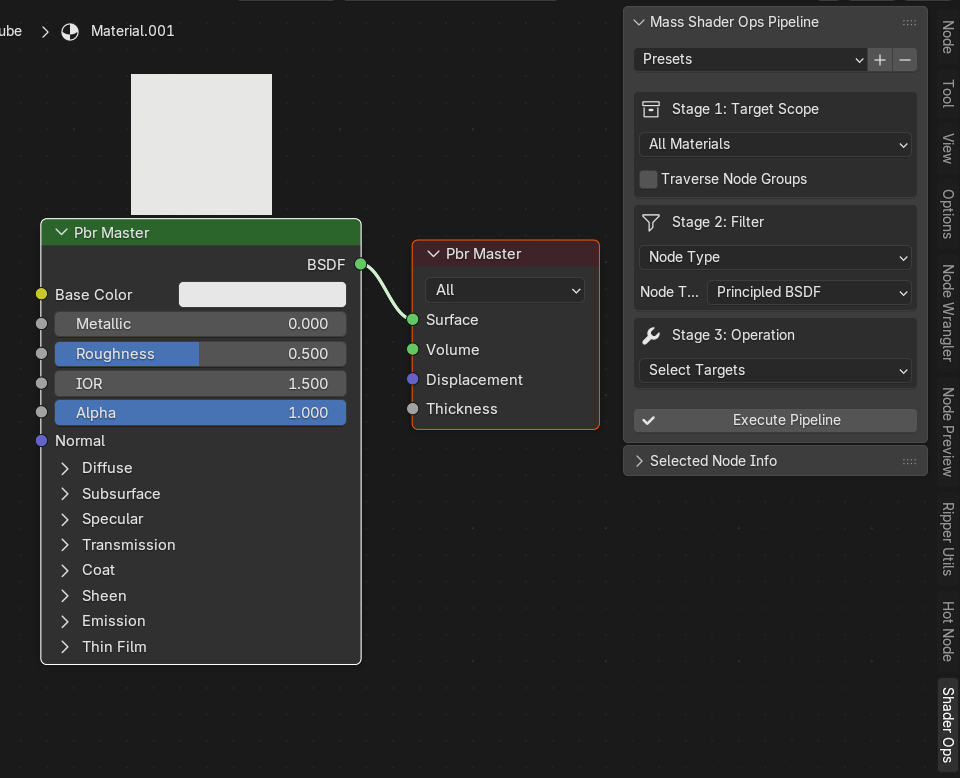
The Shader Ops panel open in Blender's Shader Editor sidebar

Who Is This For?

Whether you're managing a massive scene or learning Blender shading, this addon saves you time.

🏗️

3D Artists & Archviz Professionals

Managing large scenes with dozens or hundreds of materials — archviz interiors, game asset libraries, product visualizations. Batch-recolor nodes, standardize naming, connect textures across all materials instantly.

🎬

Technical Directors & Pipeline TDs

Enforcing shader standards across a project or studio. Audit node trees for orphaned nodes, ensure consistent naming conventions, and bulk-edit material properties to match production specs.

🎓

Hobbyists & Students

Learning how Blender's node system works by experimenting with batch operations. Clean up messy node trees, organize nodes into frames, and explore how different settings affect materials.

Overview & Key Features

Instead of editing nodes one material at a time, Shader Ops lets you define a scope, apply a filter, and run an operation — affecting hundreds of materials in a single click. Here's what you can do:

Batch Connect Sockets

Automatically link a specific output socket to an input socket across every material in your scene. Uses a smart fuzzy matching system that handles Blender's auto-renamed nodes (e.g., Image Texture.001).
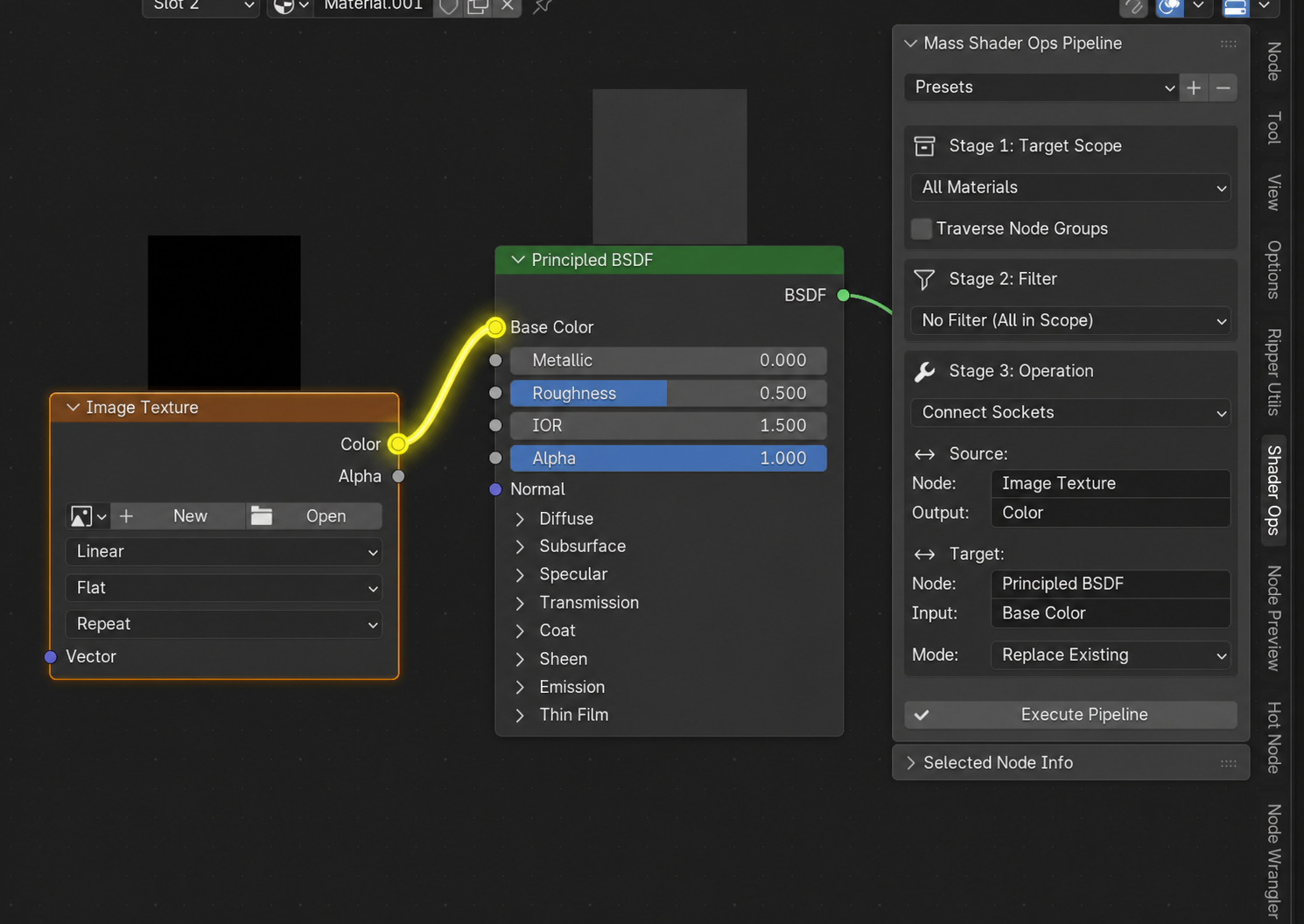
Batch Connect Sockets

Bulk Property Edits

Change Roughness, Metallic, Emission, or any other node input/attribute simultaneously on every matching node. Supports smart type alignment — scalars auto-fill vectors, and vectors auto-slice to fit.
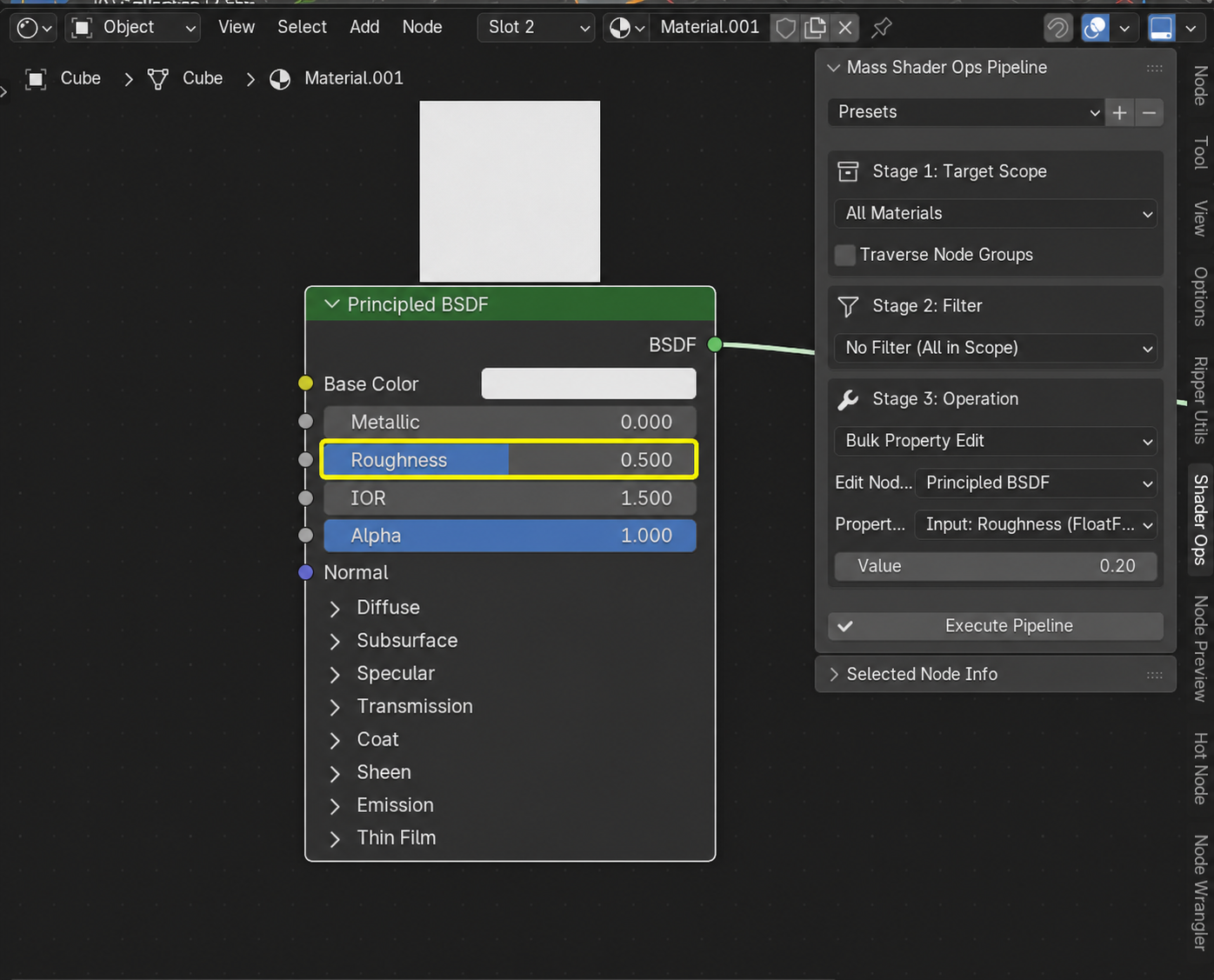
Bulk Property Edits

Organize with Frames

Wrap matched nodes in a named NodeFrame with a custom background color. Ideal for grouping texture nodes, math nodes, or any set of related nodes into visually distinct blocks.
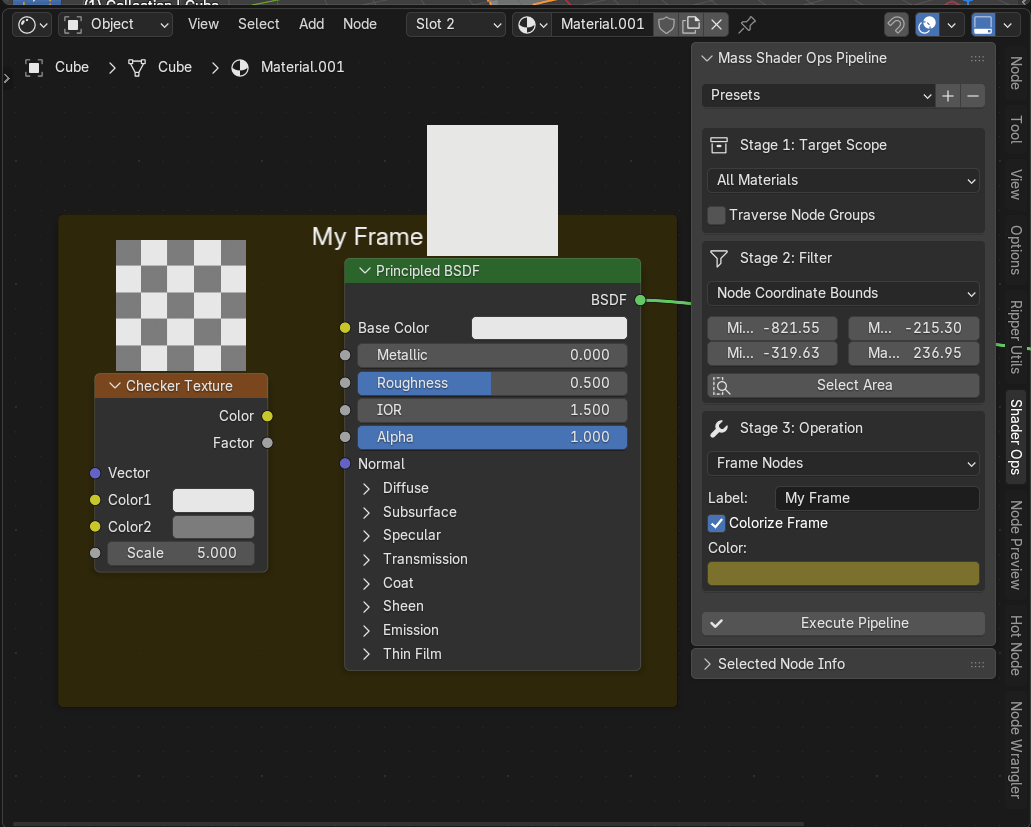
Organize with Frames

Clean Unused Nodes

Find and delete orphaned or unconnected nodes, tidying up messy node trees in seconds. Choose between orphaned only (zero connections) or aggressive mode (no outgoing links). Output nodes are always protected.
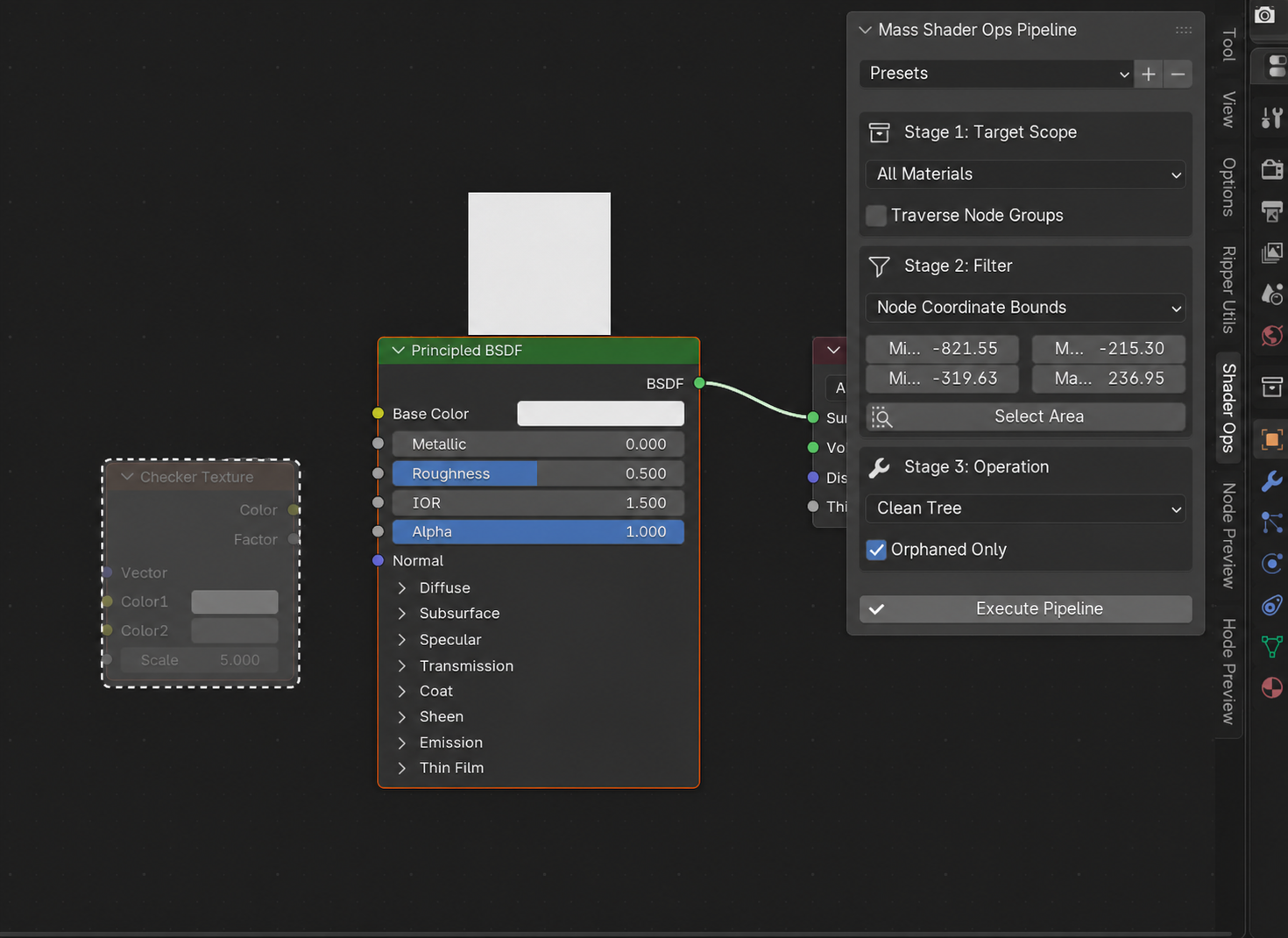
Clean Unused Nodes

Standardize Naming

Rename the name or label of all targeted nodes to enforce naming conventions. Works with any filter — rename by type, by location, or across your entire scene.
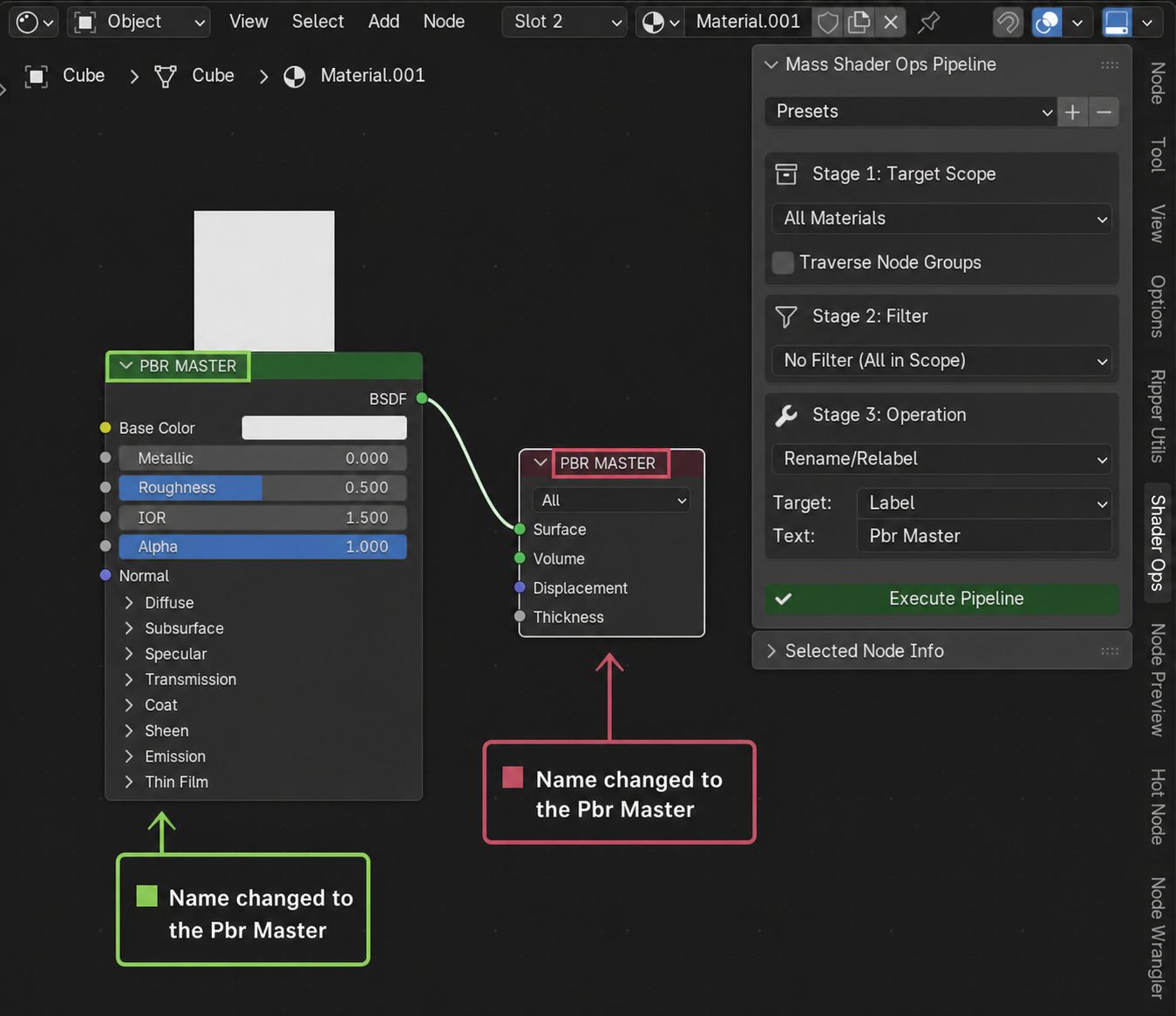
Standardize Naming

Color-Code Nodes

Apply a custom background color to targeted nodes so you can visually identify them at a glance. Toggle Use Custom Color on or off — turning it off resets nodes to Blender's default theme colors.
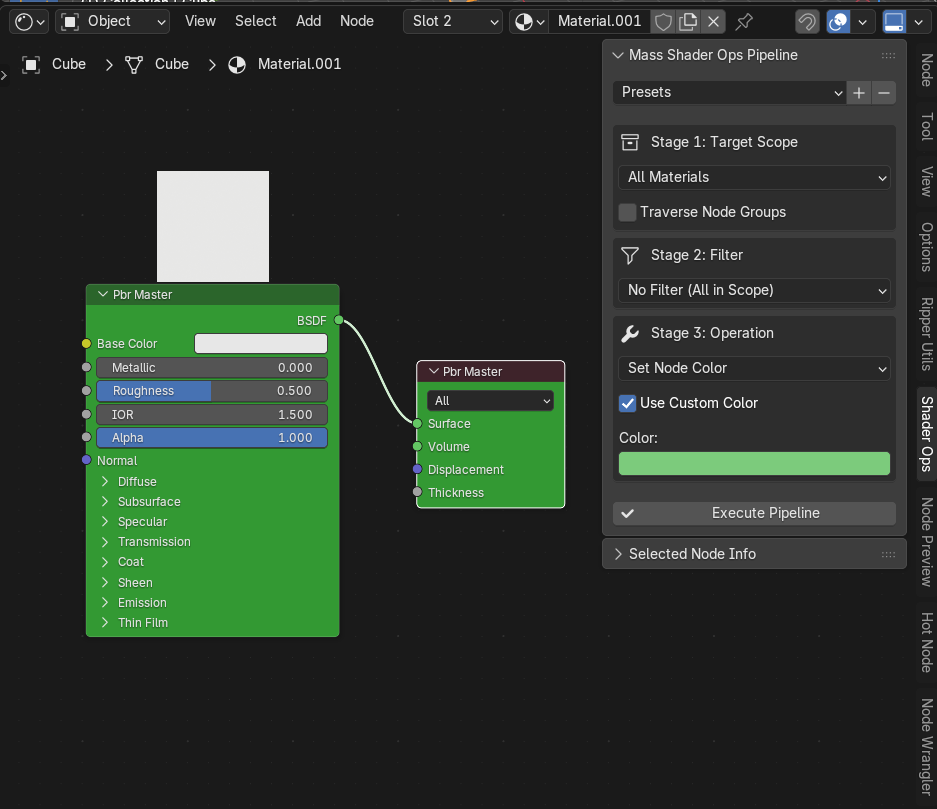
Color-Code Nodes

Move & Duplicate Nodes

Offset node positions by exact X/Y coordinates to fix overlapping layouts, or duplicate matched nodes with an offset. All RNA properties and socket defaults are copied to duplicates.
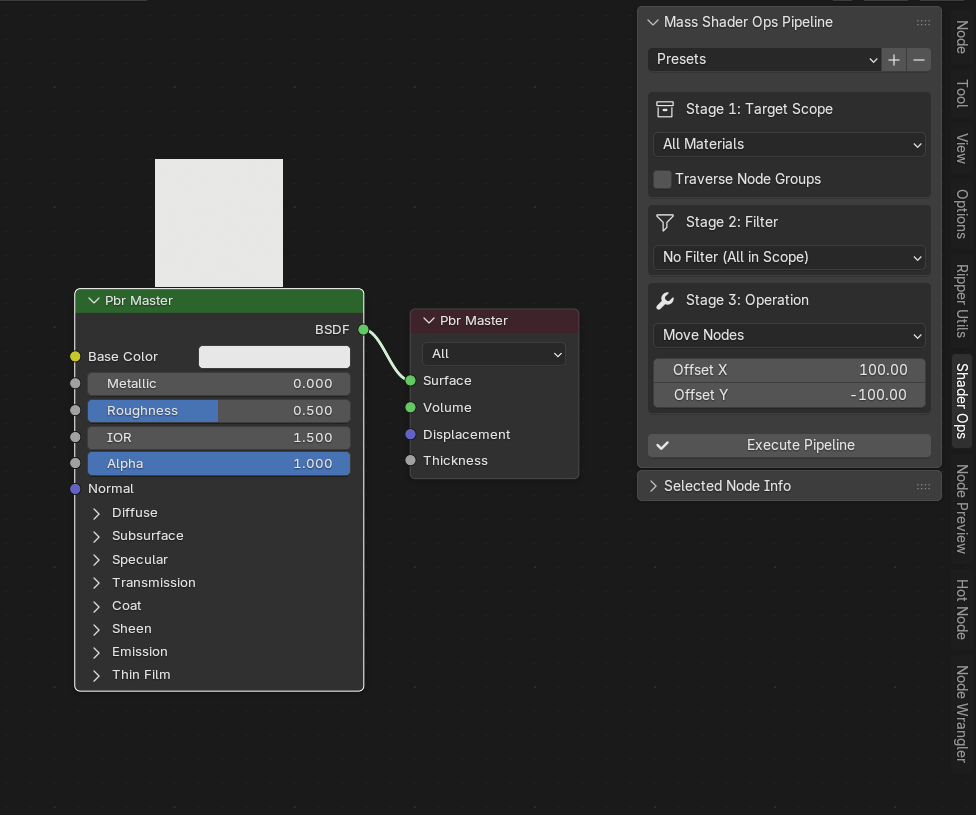
Move & Duplicate Nodes

Select & Delete Targets

Select matching nodes (or objects with matching materials) in the viewport for inspection, or delete them outright. At the material level, entire materials are removed; at the node level, individual nodes are removed.
Select & Delete Targets

Installation & Setup

Compatibility: Blender 4.2.0 or newer. Licensed under GPL-3.0.
1

Download the Addon

Download or pack the addon source folder into a .zip archive (e.g., automatic_nodes.zip). Keep the folder structure intact inside the zip.

2

Install in Blender

Open Blender, go to Edit > Preferences > Add-ons, click Install..., select the zip file, and click "Install Add-on".

3

Activate & Find the Panel

Check the box next to Node: Shader Ops to activate it. Then open the Shader Editor, press N to open the sidebar, and click the "Shader Ops" tab.

Quick Start: Your First Batch Operation

Follow these steps to color-code every Principled BSDF node in your scene green — in under 60 seconds.

1

Open a .blend file with multiple materials

Any file will work — the more materials, the more impressive the result.

2

Open the Shader Editor

Switch an editor area to the Shader Editor, then press N to open the sidebar. Click the "Shader Ops" tab.

3

Set Scope → "All Materials"

In Stage 1: Target Scope, select All Materials from the dropdown. This tells the addon to scan every material in the file.

4

Set Filter → "Node Type" → Principled BSDF

In Stage 2: Filter, select Node Type, then pick Principled BSDF from the type dropdown. This targets only Principled BSDF nodes.

5

Set Operation → "Set Node Color" → Pick green

In Stage 3: Operation, select Set Node Color. Make sure Use Custom Color is checked, then click the color picker and choose a green.

6

Click "Execute Pipeline"

Press the Execute Pipeline button at the bottom of the panel. Done!

Result

Every Principled BSDF node across all materials is now colored green. Check any material — the effect is applied everywhere. Press Ctrl+Z to undo if needed.

The 3-Step Workflow — In Detail

The core workflow is a pipeline that flows through three stages. Configure each stage, then click Execute Pipeline to run the operation.

Stage 1: Scope

Determines where the addon looks — which materials to scan.

Stage 2: Filter

Determines which nodes or materials pass through to the operation.

Stage 3: Operation

Determines what action is performed on the filtered targets.

Stage 1: Target Scope — Where to Look

Choose which materials the addon will scan. This is the broadest filter — it determines the pool of materials before any node-level filtering happens.

All Materials
Scans every material in the entire .blend file that has Use Nodes enabled. Use this when you want to affect your whole project.
Selected Objects
Only scans materials assigned to the currently selected objects in the viewport. Use this when you want to limit changes to specific objects.
By Material Name
Scans materials whose name matches a text query. Supports four matching modes:
  • Contains — name includes the text anywhere (e.g., "Wood" matches "Dark_Wood_Floor")
  • Starts With — name begins with the text
  • Ends With — name ends with the text
  • Exact Match — name must be exactly the text
☑️ Traverse Node Groups
When checked, the addon recursively enters ShaderNodeGroup nodes (node groups) to find and modify nodes inside them. Without this, only top-level nodes are affected. Enable this when your materials use reusable node groups.

Stage 2: Filter — What to Target

Narrow down which nodes (or materials) pass through to the operation. This is where precision happens.

Important: Filters work at two different levels. "No Filter" and "Node Count Threshold" are material-level filters — they pass entire materials. The other four are node-level filters — they target specific nodes within each material. This distinction affects how operations like Select and Delete behave.
No Filter (All in Scope)
No additional filtering — all materials and all their nodes from Stage 1 pass through directly. Material-level.
Node Count Threshold
Filters materials by how many nodes their node tree contains. Set a threshold number and a comparison mode:
  • Greater than — materials with more nodes than the threshold
  • Less than — materials with fewer nodes
  • Equal to — materials with exactly that many nodes
Material-level. Respects Traverse Node Groups for counting.
Node Type
Targets nodes matching a specific Blender node type (bl_idname). The dropdown is dynamically populated — it scans your current scope and shows only node types that actually exist. Examples: ShaderNodeBsdfPrincipled, ShaderNodeTexImage, ShaderNodeTexNoise. Node-level.

Tip: Use the Selected Node Info sub-panel to see any node's bl_idname, then use the "Copy to Clipboard" button to copy it.
Node Coordinate Bounds
Targets nodes whose position falls within an X/Y bounding rectangle in the node editor. Set Min X, Max X, Min Y, Max Y manually, or use the "Select Area" button to interactively click and drag a selection rectangle directly in the node editor. Node-level.
Node Name/Label
Targets nodes whose name or label matches a text query. Supports the same four matching modes as material name filtering (Contains, Starts With, Ends With, Exact Match). The match is case-insensitive. Node-level.
Selected Nodes Only
Targets only the nodes that are currently selected in the active Shader Editor. Useful for one-off operations on a hand-picked set of nodes. Node-level.

Stage 3: Operation — What to Do

Choose the action to execute on whatever passed through the filter. There are 11 operations available, each with its own set of parameters.

Select Targets
At material-level: selects the objects that have matching materials in the viewport. At node-level: selects the matching nodes in the Shader Editor. Great for previewing what a filter matches before running a destructive operation.
Select Objects
Selects the 3D viewport objects that have materials matching the filter, regardless of the filter level (material or node level).
Delete Targets
At material-level: completely removes the material from the .blend file. At node-level: removes the matched nodes from their node trees. ⚠️ Destructive — use Ctrl+Z to undo.
Move Nodes
Shifts matched nodes by an X/Y offset in the node editor. Parameters: Offset X, Offset Y. Requires node-level filtration.
Duplicate Nodes
Creates copies of matched nodes with an offset. All RNA properties and socket default values are copied to the duplicates. Parameters: Offset X, Offset Y. Requires node-level filtration.
Set Node Color
Applies a custom RGB background color to matched nodes. Parameters: Use Custom Color checkbox (uncheck to reset to Blender defaults), Color picker.
Connect Sockets
Links an output socket from one node to an input socket on another node, across all filtered materials. Uses a 4-step fuzzy matching cascade to find nodes (Exact Name → Base Name → User Label → bl_idname). Parameters:
  • Source Node — the node with the output (e.g., "Image Texture")
  • Source Output — the output socket name (e.g., "Color")
  • Target Node — the node with the input (e.g., "Principled BSDF")
  • Target Input — the input socket name (e.g., "Base Color")
  • Mode — "Replace Existing" (removes old links first) or "Append" (only links if socket is unconnected)
Clean Tree
Removes unused nodes from filtered materials' node trees. Output nodes (Material Output, AOV Output, Light Output, World Output) are never deleted. Parameters: Orphaned Only checkbox.
  • Orphaned Only ON — removes nodes with zero connections (no inputs AND no outputs linked)
  • Orphaned Only OFF — more aggressive: removes nodes with no outgoing links
Bulk Property Edit
Edit any attribute or input socket value on all nodes of a specific type. The property list is dynamically generated from the selected node type. Parameters:
  • Node Type — which node type to edit (dynamically populated)
  • Property — the attribute or socket to change (always includes: mute, label, hide, plus all input/output sockets)
  • Value — auto-detects type (Float, Int, Bool, String, or Color with RGBA picker)
Rename/Relabel
Changes the name or label of all matched nodes. Parameters:
  • Target — "Label" (display label) or "Name" (internal unique name)
  • Text — the new name/label to apply
Frame Nodes
Wraps all matched nodes inside a new NodeFrame. Parameters:
  • Label — text displayed on the frame header
  • Colorize Frame checkbox — enable to set a custom frame color
  • Color picker — the frame's background tint

Interactive Simulator

Try the 3-step workflow without opening Blender! The mock panel on the left mimics the addon's UI. Configure a Scope, Filter, and Operation, then click Execute Workflow to see the result visualized on the node graph canvas.

1 Pick a Scope in the left panel
2 Pick a Filter to narrow targets
3 Pick an Operation to apply
4 Click Execute Workflow and watch the canvas
Shader Ops Workflow
Stage 1: Target Scope
Stage 2: Filter
Stage 3: Operation
Shader Node Graph Workspace Ready

Operations Reference

Detailed breakdown of every operation, its parameters, and when to use it.

Select Targets

What it does: Adds the filtered targets to Blender's selection. At material-level (No Filter / Count filter), it selects the objects in the viewport that have matching materials assigned. At node-level (Type / Name / Location / Selected Nodes filter), it selects the matching nodes in the Shader Editor.
Parameters: None — this operation has no additional settings.
When to use: Before running a destructive operation (like Delete), use Select first to preview exactly what will be affected. Also useful for quickly finding which objects use a specific material.

Select Objects

What it does: Selects the 3D viewport objects containing the filtered materials. Unlike Select Targets, this always targets the objects in the viewport, even if a node-level filter is active.
Parameters: None — this operation has no additional settings.
When to use: When you want to select objects that have specific nodes inside their materials (e.g. finding all objects using an Image Texture node in their material).

Delete Targets

What it does: Permanently removes the filtered targets. At material-level, it calls bpy.data.materials.remove() with do_unlink=True to fully purge the material. At node-level, it removes individual nodes from their node tree.
Parameters: None.
When to use: Cleaning up unused materials, removing specific node types across all materials (e.g., removing all Noise Texture nodes from every material). Always Select first to verify targets. Press Ctrl+Z to undo.

Move Nodes

What it does: Offsets the position of matched nodes by adding X and Y values to their current location in the node editor.
Parameters: Offset X (float, default: 100) — horizontal shift. Offset Y (float, default: -100) — vertical shift. Positive X = right, Positive Y = up.
When to use: Fixing overlapping nodes in messy node trees, spacing out nodes for readability, or aligning nodes after a batch import. Requires a node-level filter (or No Filter with all nodes).

Duplicate Nodes

What it does: Creates exact copies of matched nodes, offset by X/Y values. Copies all non-readonly RNA properties and all input socket default values. The original is deselected and the duplicate is selected.
Parameters: Offset X (float, default: 100), Offset Y (float, default: -100).
When to use: Creating variations of existing node setups, duplicating texture nodes to add secondary layers. Requires a node-level filter.

Set Node Color

What it does: Applies a custom RGB background color to matched nodes by setting node.use_custom_color = True and node.color = (R, G, B). Uncheck "Use Custom Color" to reset nodes back to Blender's default theme appearance.
Parameters: Use Custom Color (checkbox, default: on) — toggles custom coloring. Color (RGB picker, default: green 0.2, 0.6, 0.2).
When to use: Visually grouping node types (e.g., all texture nodes in amber, all math nodes in blue), creating visual standards across a team project, or highlighting specific nodes for review.

Connect Sockets

What it does: Creates a node link from a source node's output socket to a target node's input socket, across all filtered materials. Uses a robust 4-step fuzzy matching cascade to find nodes: (1) Exact name match, (2) Base name / prefix match (handles .001 suffixes), (3) User label match, (4) Node type (bl_idname) match. Socket names are matched case-insensitively.
Parameters:
  • Source Node (text, default: "Image Texture") — the node providing the output
  • Source Output (text, default: "Color") — output socket name
  • Target Node (text, default: "Principled BSDF") — the node receiving the input
  • Target Input (text, default: "Base Color") — input socket name
  • ModeReplace Existing (removes old links first) or Append (skips if already connected)
When to use: Reconnecting textures after a node tree restructure, wiring up identical node setups across hundreds of materials, linking a new utility node into every material's chain.

Clean Tree

What it does: Scans each filtered material's node tree and removes unused nodes. Output nodes (Material Output, AOV Output, Light Output, World Output) are always protected and never deleted.
Parameters: Orphaned Only (checkbox, default: on).
  • ON — Only removes nodes with zero total connections (no inputs AND no outputs linked)
  • OFF — More aggressive: removes any node with no outgoing links (except output nodes)
When to use: Cleaning up after deleting connections, removing leftover nodes from imported assets, tidying up before delivery. Use "Orphaned Only" for a safe cleanup, or uncheck it for aggressive pruning.

Bulk Property Edit

What it does: Edits an attribute or input socket default value on all nodes of a specific type. The property list is dynamically generated from the selected node type — always includes mute, label, hide, plus all input and output sockets. Uses safe socket type alignment: scalars auto-fill vectors, vectors are sliced/padded, and type mismatches are handled gracefully.
Parameters:
  • Node Type — dynamically populated dropdown of node types in your scope
  • Property — dynamically populated dropdown of attributes and sockets
  • Value — auto-detects the correct input type: Float field, Int field, Bool checkbox, String text, or RGBA Color picker
When to use: Setting Roughness to 0.3 on every Principled BSDF, muting all Noise Texture nodes, hiding all Math nodes, changing all Image Texture labels to a standard name.

Rename/Relabel

What it does: Sets the name (internal unique identifier) or label (visible display text) of all matched nodes to a new value.
Parameters: Target — "Label" (display label) or "Name" (internal name). Text (string, default: "New Node").
When to use: Enforcing naming conventions across a project (e.g., relabeling all Principled BSDF to "PBR Master"), adding descriptive labels to specific node types for documentation or team communication.

Frame Nodes

What it does: Creates a new NodeFrame layout block and parents all matched nodes to it. Sets the frame's label and optionally assigns a custom background color.
Parameters: Label (string, default: "My Frame") — frame header text. Colorize Frame (checkbox, default: on) — enable custom color. Color (RGB picker, default: 0.2, 0.2, 0.2).
When to use: Organizing complex node trees by grouping related nodes (texture inputs, color processing, output chain), creating visual sections in node trees for team readability.

Under the Hood

Technical details about how the addon works internally.

Fuzzy Node Lookup

Blender's node trees frequently generate duplicate names (e.g., Image Texture.001, Image Texture.002). The addon uses a robust four-step fuzzy matching cascade to reliably find the right node: Exact Name → Base Name/Prefix → Custom User Label → Node Class Identifier (bl_idname). This means you can type "Image Texture" and it will match Image Texture.003 in materials where the base name has been auto-incremented.

Socket Type Alignment

When executing bulk edits (e.g., Roughness, color maps), the core engine handles shape mismatches gracefully. Scalar values are automatically distributed to fill RGB/RGBA vectors (e.g., 0.5 becomes (0.5, 0.5, 0.5, 1.0)), while vectors are sliced or padded to prevent data-type errors. This prevents crashes and ensures predictable behavior across different socket types.

Recursive Group Traversal

Many production materials use reusable Node Groups (ShaderNodeGroup) to encapsulate common setups. With Traverse Node Groups checked, the addon employs a recursive scanner that enters each group's internal node tree, applying filters and operations to nodes inside nested groups — no matter how deep the nesting goes.

Preset System

Save and load complete pipeline configurations as named presets. Each preset stores the full state of all three stages — scope, filter, and operation — including all parameters. Built-in presets provide common workflows (color coding, auto-connecting, cleanup), and you can create unlimited custom presets for your team's specific needs. Presets persist across Blender sessions via addon preferences.

Frequently Asked Questions

Can I undo operations?

Yes. Every operation registers with Blender's undo system. Press Ctrl+Z immediately after execution to revert all changes. Even batch operations that affect hundreds of materials are undone in a single step.

Does this work with Node Groups?

Yes — check the "Traverse Node Groups" option in Stage 1. This makes the addon recursively enter every ShaderNodeGroup to find and modify nodes inside them. Without it, only top-level nodes are affected.

Will this break my materials?

The addon modifies only what you tell it to. Use the Select Targets operation first to preview exactly which nodes or materials will be affected before running any destructive operation. And remember — Ctrl+Z is always there.

What Blender versions are supported?

Blender 4.2.0 or newer. The addon uses the modern extension manifest format (blender_manifest.toml) introduced in Blender 4.2.

How does "Connect Sockets" find the right nodes?

It uses a 4-step fuzzy matching cascade: (1) Exact name match, (2) Base name/prefix match (handles .001 suffixes), (3) User label match, (4) Node type (bl_idname) match. This means typing "Principled BSDF" will find Principled BSDF.001, a node labeled "Principled BSDF", or any ShaderNodeBsdfPrincipled.

Can I use this on World or Light shaders?

The addon is designed for material node trees (materials with Use Nodes enabled). World and Light node trees are not currently scanned by the scope system.

What does "Node Count Threshold" actually filter?

It's a material-level filter. It counts how many nodes exist in each material's node tree, then passes or rejects the entire material based on whether the count meets the threshold condition (greater than, less than, or equal to). It does not filter individual nodes.